A hacked WordPress site often does not look hacked to the person who owns it. The homepage loads and the dashboard works. The signs turn up somewhere else: in Google’s results for your domain, on a customer’s phone, in your mail. Once you find one, a few early decisions shape how the cleanup goes.
Why it looks fine from your desk
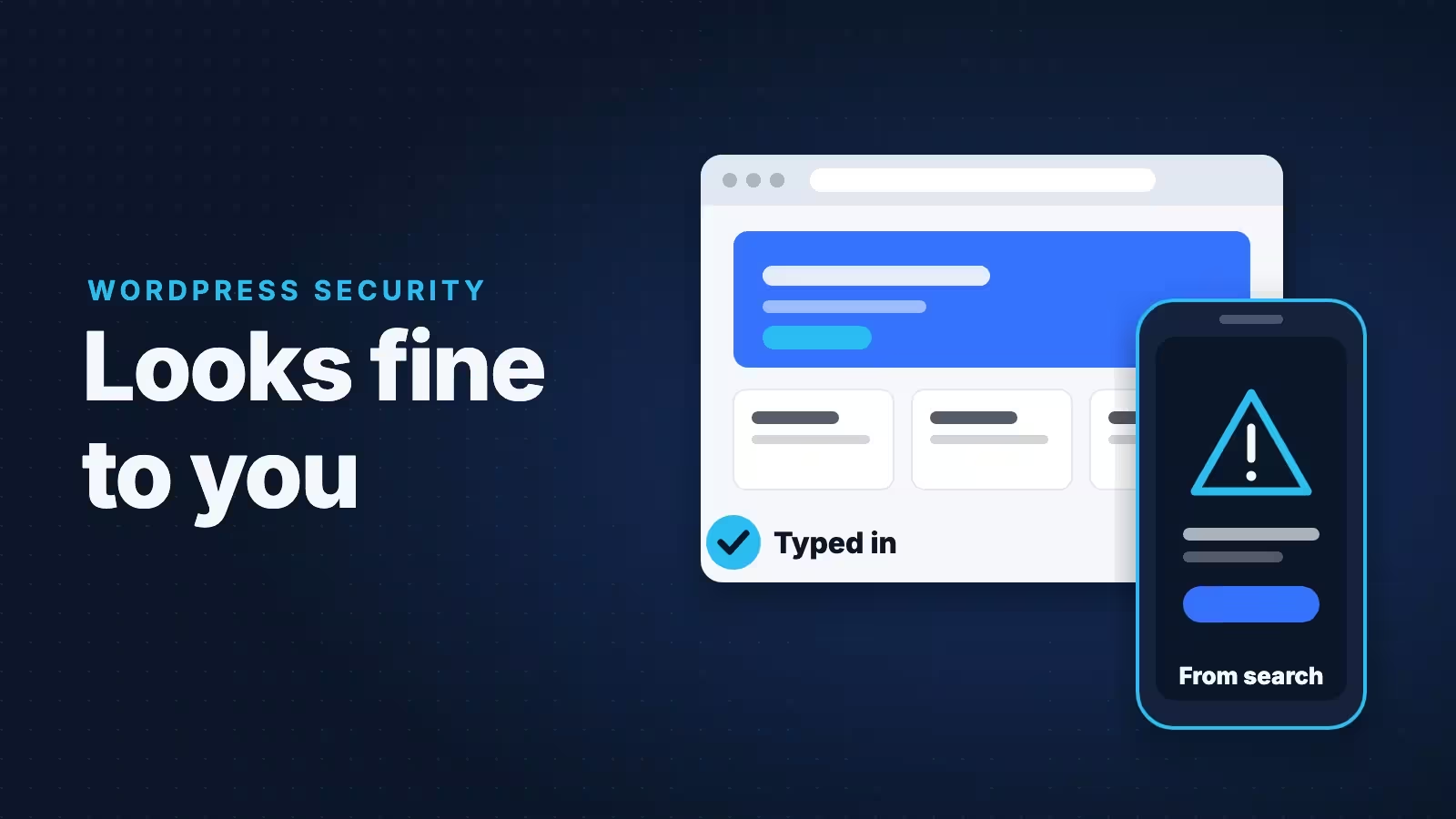
Google’s spam policies say that when a site is hacked, “it’s not uncommon for the hacker to use cloaking to make the hack harder for the site owner to detect.” Cloaking means showing search engines one thing and people another. Redirects work the same way: Google notes that “the kind of redirect sometimes depends on the referrer, user agent, or device”. A visitor arriving from Google can land on a spam page; you, typing the address in, get your homepage.
Being the owner can make it harder. Google’s help for the Security issues report warns that hackers can hide malicious links from someone they take to be the owner, and suggests checking from a different account or computer.
Signs that show up outside your own browser
None of these proves a compromise on its own. Each is a reason to look closer.
- Pages you never created in Google’s results. Search for
site:yourdomain.comand page through a few screens. Google’s guide to the Japanese keyword hack warns that clicking a spam result may show a 404 error, because hackers try to make a page look gone when it is not. Rather than clicking a suspicious result, paste its address into Search Console’s URL Inspection tool (your site needs to be in Search Console; see below), which shows what Google actually receives. - A customer reports a redirect or warning you cannot reproduce. Believe them, and ask what device they used and how they reached the site. Google says Safe Browsing shows warnings “based on the browsing context”, so you may not see them yourself, and it calls the Security issues report “the source of truth”. It also advises against opening infected pages in your own browser.
- An administrator you do not recognize. In WordPress, open Users and click the Administrator filter above the list. Every name should belong to someone you know and still work with.
- A Search Console owner you do not recognize. With one common spam hack, Google says “the hacker will typically add themselves as a property owner in Search Console”. Owners are listed under Settings, then Users and permissions. Only owners can see this list; if you have never used Search Console, add and verify your site there first.
- Mail trouble. WordPress’s guide warns that hacked sites are used to send spam, and blocklists then flag the server’s IP address, which often also handles the site’s email. Bounces for messages you never sent are less conclusive: they can mean someone is forging your address, and the bounces that come back to you are what the SPF standard, RFC 7208, calls backscatter. SPF, DKIM and DMARC make forgeries easier for other servers to spot.
What to do first
Start with decisions rather than fixes. Write down what you have seen, when, and anything that changed recently, as WordPress’s FAQ: My site was hacked recommends, and tell your host. Then decide honestly who will do the cleanup. Google’s guide to building a support team says doing it yourself “requires the ability to read and understand code, how to use command-line server tools, possibly how to change web server configurations”. If customer information may have been taken, Google also suggests weighing any business, regulatory or legal responsibilities before you clean or delete anything.
On Blue Arctic Shared Web Hosting or Managed WordPress Hosting, open a support ticket first; our help article on checking WordPress for malware and recovering has the step-by-step.
What not to do
Changing the database password on its own. Changing the WordPress administrator passwords and your hosting control panel, FTP and SFTP passwords is worth doing early, from a computer you have scanned for malware. The database password is different. WordPress reads it from DB_PASSWORD in wp-config.php, so if the database user’s password changes and that file does not, the site stops with “Error establishing a database connection”. Change both at the same time, or leave it to your host or whoever does the cleanup. New WordPress secret keys, also set in wp-config.php, invalidate all existing login cookies, so everyone, including any intruder, has to log in again. Useful during a cleanup; just expect it.
Restoring last night’s backup and calling it done. If the attacker got in before that backup ran, the backup carries the problem. Google’s cleanup guide says to “check that your backup was created before your site was hacked”, and still lists correcting the vulnerability as a separate step after a restore. A restore also loses everything added since that backup, such as orders, form entries and new posts, so keep a copy of the site as it is now and note what has changed before anyone runs one. Our guide to checking a web host’s backup policy starts with how far back your backups go.
Deleting files that look odd. Google describes hackers injecting code “into existing pages on your site”, so malicious code often sits inside files the site needs. Deleting the wrong file can break the site; deleting only the obvious ones can leave a way back in. Keep a copy of the site as it is, infected, before anything is removed, as WordPress and Google both recommend, and never upload it back.
Asking Google for a review too early. Google says requesting one while the problem still exists “will only prolong the period of time that your site is flagged as dangerous”, and that fixing just some pages “will not earn you a partial return to search results.”
What a proper cleanup has to cover
A scanner reporting zero is not the finish line. Whoever does the work, expect these outcomes:
- Files and the database. Google’s guide to identifying the vulnerability says to look in the database for “ordinary text fields that now show iframes or scripts”.
- Fresh copies of WordPress, plugins and themes at the versions the site runs. WordPress warns that installers “often only overwrite existing files, and hacks often introduce new files”.
- The .htaccess file checked. WordPress calls it one of the files “most often updated and used for nefarious activities”.
- Every account reviewed. Unknown WordPress administrators removed, with any content they own attributed to a known account, and unknown Search Console owners removed with their verification tokens, once you are a verified owner yourself (a former developer or agency may be the only one). Google’s owner management help says that otherwise a removed owner “will be able to re-verify ownership”.
- The way in found and closed. Often a plugin nobody updated or a leaked password, two of the top causes in Google’s guide to how sites get hacked. Google advises searching on after finding one cause, because “there may be multiple, independent hacks in place”.
- Passwords changed again once the site is clean. WordPress says: “if you only changed them when you discovered the hack, change them again now.” New secret keys belong here too.
- Google cleared. Spam pages the attacker added should return a 404 so they leave Google’s index over time, and if Google flagged the site, a review is requested. Google says that “can take from a few days to a few weeks”.
How to judge a cleanup quote or an “all clean” message
Google’s checklist for finishing a cleanup asks: “Did I fix the root cause vulnerability that allowed my site to be hacked?” A good quote or report answers that unprompted. Fair questions for anyone doing the work:
- How did the attacker get in, and what changed so it cannot happen the same way again? “We restored a backup” does not answer that.
- Did the work cover the database and .htaccess, or only the files a scanner flagged?
- Which passwords should I change, and who changes the database password and wp-config.php together?
- Will I get a written account of what was found and changed? A review request to Google should describe your fixes; Google says a good one “explains the exact quality issue”, “describes the steps you’ve taken” and “documents the outcome”.
- Who requests the Google review, and when?
You can check an “all clean” claim yourself: the Security issues report shows whether Google still sees a problem, and a site: search over the following weeks shows whether spam pages are leaving the index.
If you want it handled
Blue Arctic’s Emergency Malware Removal is a one-time job for a WordPress site on Blue Arctic or any other host, with no hosting plan required. We remove the malware, find how it got in, patch the vulnerability and harden the configuration, and the write-up of what we found and changed lands in your helpdesk ticket. The page sets out the written guarantee, and you are welcome to ask us the questions above before you order.